
To do this, you need a programme that can match the records from one table with those from the second table. For IDs and similar data, it is sufficient to find exact matches. However, with certain types of data – particularly the names of companies and individuals and their corresponding postal addresses – discrepancies often arise during data entry. Transposed words, omissions and additions are just as common here as abbreviations and typing or spelling errors.
The name ‘Albert Einstein’, for example, might have been recorded as follows:
- Einstein Albert
- A. Einstein
- Albert Einssein
- Abert Meinstein
The same applies to company names: here, too, words may have been transposed or abbreviated. Parts of the company name may be missing, or details may have been added, such as the location of the branch in question:
- Micron Technology Inc.
- MICRON Inc.
- Micron Technology
- Mikron Incorporated
And the situation is no better when it comes to street names. Here, too, abbreviations and spelling mistakes are common.
If two addresses have been recorded in a similar way but are not 100 per cent identical, it is difficult to match them up. This makes it a challenge to supplement data or delete redundant records. Simple tools or manual data cleansing do not achieve the desired result. Instead, it is advisable to use powerful programmes specifically designed for this purpose, such as DataQualityTools. Only these programmes deliver truly useful results.
To do so, follow the steps below:
- If you have not already done so, download DataQualityTools free of charge here. Install the program and request a trial activation. Then you can work with the program for one whole week without any restrictions.
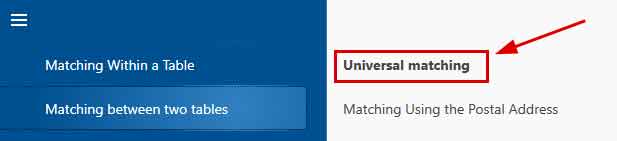
- The functions we need can be found in the menu of the 'Matching between two tables' block. Let’s choose 'Universal Matching'.
- After starting this function, the project management appears. Here, you create a new project with a project name of your choice and then click on the 'Next' button.
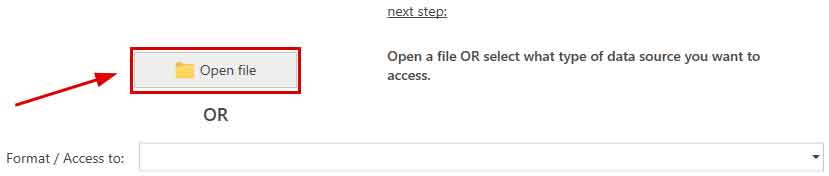
- In the next step, we start by opening the two Access files with the data to be processed by clicking on the 'Open file' button.
After that, we enter the name of the database server. After clicking on the 'Connect to server' button, the access data have to be entered. Finally, the desired database containing the table can be selected in the corresponding selection lists. - Then you have to tell the program which of the columns from the table you want to compare:
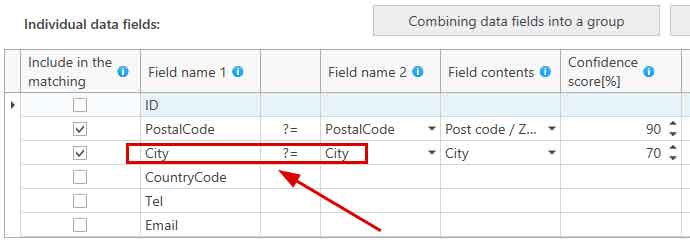
In this example, the column 'City' is to be compared with. This contains the city name, which is why 'City' was selected from the selection list for the field content. And 70% has been chosen as the threshold for the configence score. The city name must therefore be at least 70% the same, so that the data record in question appears as a hit in the results.
If required, individual columns can also be combined to form a group: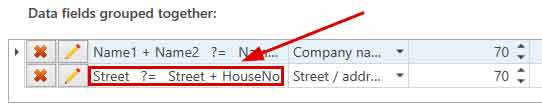
The contents of the columns are then summarised in the group before the comparison and are thus compared together. In this example, the contents of the data fields 'Street' and 'HouseNo' from Table 1 is compared with the contents of the data field 'Street' from Table 2. - With a click on the button 'Next', we get to a dialogue with further options. But we don't need them here.
- A click on the 'Next' button starts the matching. In no time at all, a summary of the results is displayed.
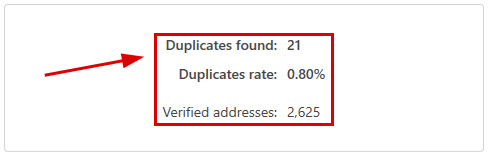
If the program has found duplicates between the processed tables, a click on the 'OK' button takes you to the dialogue with the functions for transforming the results. Otherwise, reduce the threshold for the degree of matching and the re-start the comparison. - In the dialogue with the functions for transforming the results, there is a button at the very top with the caption 'Manual post-editing'. Here, the results of the comparison is presented in table form. Those records that should be deleted are marked with a red X, which can be removed if necessary.

- Finally, you must transform the results. For example, we could delete the records marked with a deletion flag directly of the Access file. To do this, we select the appropriate function by first clicking on 'Deleting functions':

And then click on 'Deleting in the Source Table':
You can use DedupeWizard as well to execute a search for duplicates between two tables. It can only process Excel files and comprises only the most important functions of DataQualityTools.
Note: There is a video tutorial available for DataQualityTools, introducing the user to the operation of the program based on the example of a duplicate detection within one table.
You can read about how to use DataQualityTools to search for duplicates within an address list in the article 'Remove Duplicates in Access'.